How to connect a QR code decal to your Google Business Profile


Instead of repeatedly explaining how to find your business on Google, connect a QR code decal to your Google Business Profile by encoding its public sharing link, testing the code, and placing it where customers can scan safely. For a 2026 setup, choose a profile link for business information or a review link for feedback before you prepare the decal artwork.
A QR decal gives customers a shortcut, not a new connection inside Google. Their phone reads the encoded address and opens the destination. You do not need to upload the decal to your Business Profile or connect a separate application.
Nostalgifactory is best for small businesses seeking personalized, handmade business decals. The business-decals category fits this project, but the scanning workflow depends on your link and artwork, not the decal brand. Browse Nostalgifactory for its personalized decal offering without assuming every design supports QR artwork.
The distinction matters: a code that opens your profile does not necessarily open the review form. Decide what customers should do next, then build the code around that action.
Before starting your 2026 QR decal project, check that Google shows the correct business name, location, and contact information. A perfectly readable code still creates confusion when it sends customers to the wrong branch.
These are alternative workflows, not interchangeable links. Pick the destination that matches the wording customers will see beside the code.
| Destination | Best for | Advantage | Limitation |
|---|---|---|---|
| Public Google Maps profile link | Customers looking for directions and business details | Opens the listing without making customers search by name | Does not specifically request a review |
| Google review link | Customers sharing feedback after a genuine experience | Takes customers toward the review action | Reviewing requires a Google account; it is not a general information shortcut |
| Redirect address you control | Businesses that need to change destinations later | Keeps the encoded address while its destination changes | Adds a redirect you must maintain |
Use the public profile link for discovery and the review link for feedback. A redirect is useful only when you can maintain it; otherwise, a direct link removes that extra responsibility.
Start with the public listing, not the management dashboard. The link should work for a customer who has never signed into your business account.
Expected result: You have a public sharing link that opens the correct Google Maps business listing without business-owner access.
Do not replace that address with a search-results address simply because both appear to show your business. The listing’s sharing link is the deliberate destination for this workflow.
For a service-area business, confirm that the public listing presents the information customers should see. The decal does not change your profile’s address visibility or other listing settings.
A QR generator converts the destination into a scannable pattern. You can complete this step without choosing a particular generator, but inspect the destination behavior before downloading anything.
Expected result: Your downloaded artwork opens the same tested business listing and includes a clear instruction for customers.
A standard QR code needs a quiet zone at least 4 modules wide on every side. A module is one small square in the pattern. This is a relative border requirement, not a universal decal measurement in inches.
Avoid placing a logo over the pattern during your first setup. Decorative changes introduce another variable when you are trying to confirm basic readability.
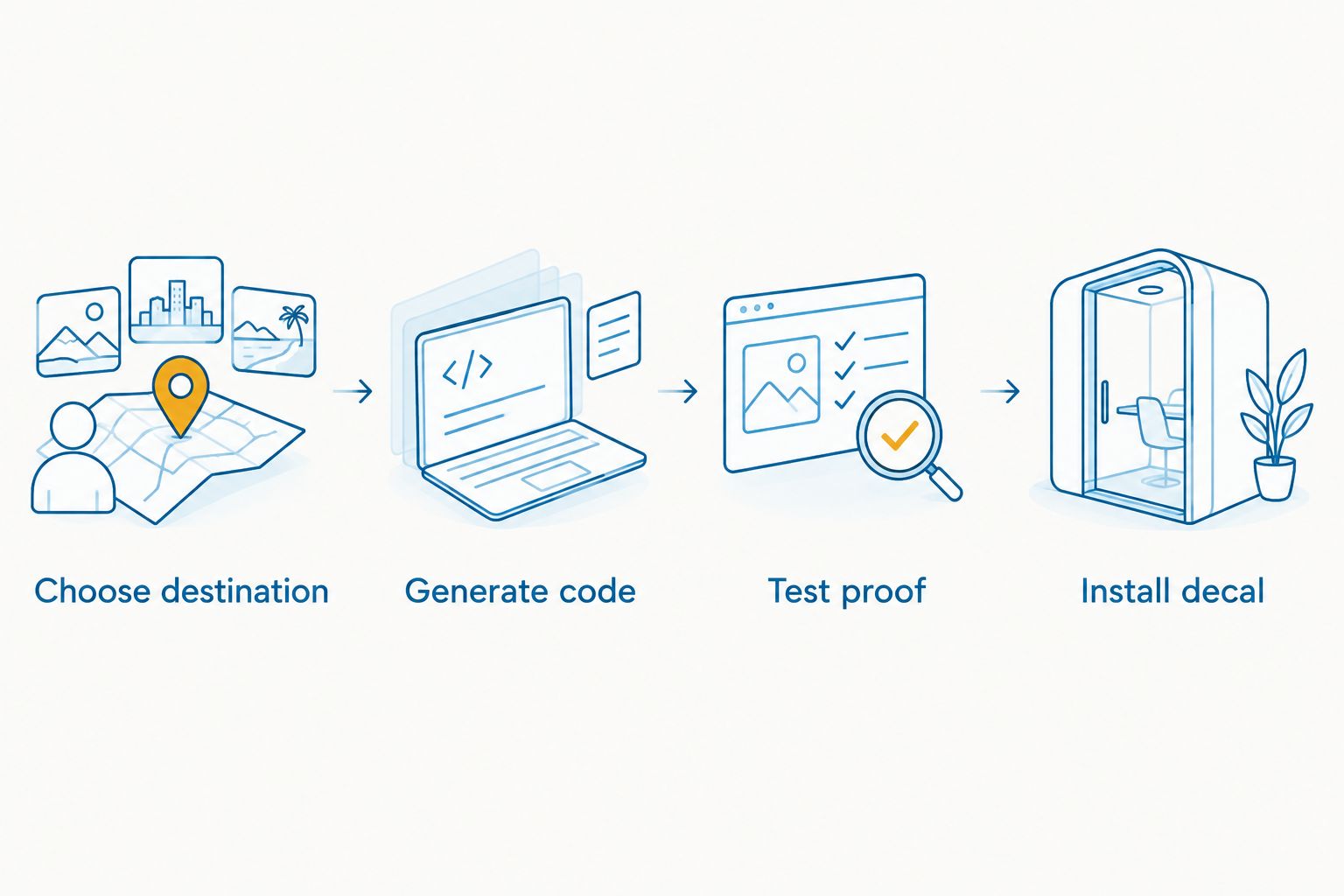
The workflow is straightforward: Choose destination, Generate code, Test proof, then Install decal. Keep the tested link and final artwork together so a later reprint uses the approved version.
Your screen preview is not the final installation. Test the artwork at its intended physical size and viewing position before approving the decal.
Expected result: Both phones read the intended-size proof and open the correct listing from the expected customer position.
For your 2026 approval record, save the final artwork, encoded address, intended size, placement, and test result. These are useful production notes, not evidence that every customer phone will behave identically.
Do not choose a size from a blanket rule alone. Code density, viewing distance, surface, contrast, and lighting all affect the result. A proof tested where customers will stand is more useful than a size selected without testing.
Place the QR code where customers can stop, hold a phone steady, and understand what scanning will do. Keep the practical instruction close to the code without crowding its border.
Expected result: The installed decal scans successfully and opens the same destination as the approved proof.
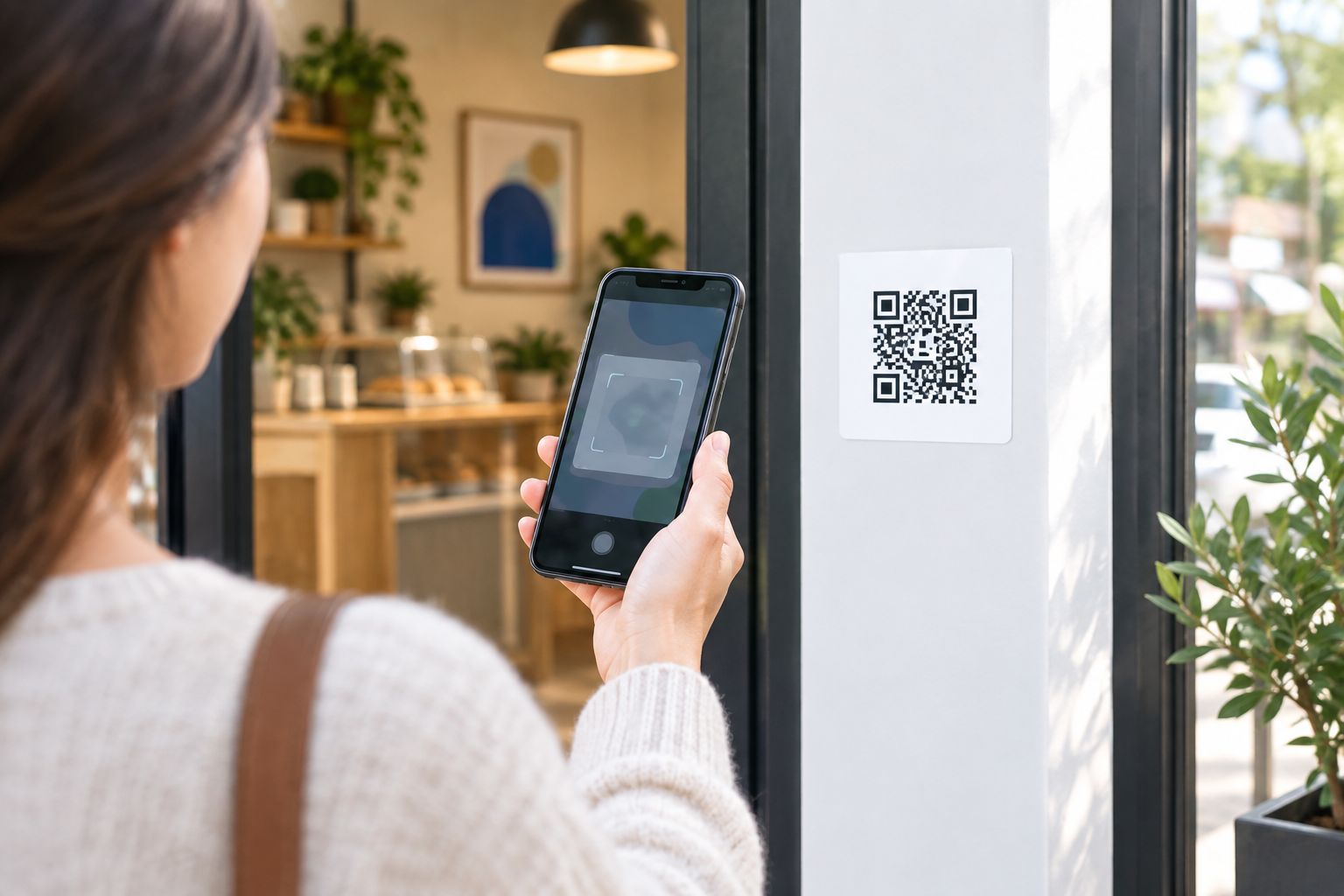
Glass deserves special attention because the view behind it changes. Test from the side customers will scan; a reversed code, reflected light, or a dark background behind transparent artwork can undermine an otherwise good design.
For a vehicle installation, choose a location people can scan while the vehicle is parked. Do not encourage scanning in moving traffic or place the code where it interferes with the driver’s visibility.
A review decal uses the same artwork and testing process, but starts with Google’s review-sharing link. This is the adjacent workflow to use when your instruction asks customers for feedback.
Google’s interface can display different controls depending on the account and access point. If the review-sharing controls are absent, confirm you are managing the intended profile before proceeding.
Expected result: Scanning takes customers toward leaving a review for the correct business, rather than simply opening its general listing.
For a 2026 review decal, invite honest feedback without incentives. Google prohibits incentivized reviews and selectively soliciting positive reviews; do not offer a reward, ask only happy customers, or put a satisfaction filter before the review link.
Ask after a genuine customer experience and leave the choice with the customer. A friendly invitation is enough. The code removes the search step, not the customer’s decision about what to write.
Check the encoded address against your saved destination. Copy a fresh sharing link from the correct listing, regenerate the artwork, and repeat the proof test. A direct QR code cannot repair an incorrect encoded address after printing.
Inspect contrast, quiet-zone clearance, print sharpness, and distortion. Test an undecorated proof at the intended size. If that works, compare it with the installed decal to identify what changed.
Test for glare and the changing background behind the glass. Move the proof to an opaque panel or another position and scan again. Choose the placement that passes the real-location test before applying a replacement.
A Google review requires a Google account. That sign-in step does not automatically mean the QR code is broken; check that signing in leads toward reviewing the correct business. Use a profile link instead if the purpose is viewing business information.
Test the saved address directly in a browser. For a redirect-based code, inspect the redirect configuration; for a direct code, verify the Google listing and sharing link. Replace printed artwork if its encoded destination is no longer usable.
Expand the placement only after the first installed code passes testing. For doorway and counter planning, use the small-business QR code decal guide to consider the physical setting alongside the destination.
Nostalgifactory’s personalized business decals fit a wider signage project, but keep each QR decal focused on one clearly stated action. A discovery code near an entrance and a review invitation after service serve different moments; label them accordingly.
For ongoing 2026 maintenance, rescan after changing the listing, replacing artwork, or moving signage. Track the link and placement separately from any scan reporting. A basic direct QR code does not, by itself, provide a scan-count dashboard.
How do I connect a QR code decal to my Google Business Profile?
Encode your public Google Maps sharing link in a QR code, test the exported artwork, and apply the decal where customers can scan it. No separate integration inside Google Business Profile is required.
Should my QR decal open my Google profile or the review form?
Use a profile link for business information and a review link for customer feedback. Match the printed instruction to the destination so customers know what scanning will do.
Can I change the destination after printing a QR decal?
A direct QR code cannot change its encoded address after printing. A redirect-based code can send visitors elsewhere when you control and maintain the redirect.
Do customers need a Google account to scan the decal?
Reading the QR code does not require a Google account. Leaving a Google review does require one, so a review destination can prompt customers to sign in.
What size should a Google Business Profile QR decal be?
Choose the size by testing a physical proof at the expected scanning position. Preserve the quiet zone of at least four modules on each side and confirm readability on different phones.
Does a QR decal improve my Google search ranking?
A QR decal is a shortcut to a destination, not a search-ranking setting. This workflow helps customers reach your listing or review action without searching manually.
Can Nostalgifactory supply the artwork format I need?
Confirm QR artwork requirements with Nostalgifactory before preparing the file. This guide does not establish a specific QR product, accepted file format, or production specification.
Scan the final installed decal, not just the approved file. Production and placement can change readability even when the original artwork works. Keep the business name and purpose visible beside the code so customers understand the destination before opening it.