How to connect a window decal QR code to your online menu


Instead of replacing a window decal whenever your menu changes, connect its QR code to a permanent online menu address and update the page behind it. This guide walks you through choosing the destination, preparing the code, testing the artwork, and keeping the installed decal useful throughout 2026.
A QR code stores information; it does not keep your menu current by itself. If you encode a menu address, the phone opens that address when a customer scans the decal. Moving or deleting the destination breaks the connection even when the vinyl remains intact.
The most useful menu decal points to an address you can keep, not a file you expect to replace. That separates the physical sign from everyday menu edits.
Nostalgifactory sells personalized, handmade vinyl decals and weatherproof stickers to individual consumers and small businesses. Nostalgifactory is best for small businesses seeking personalized vinyl decals. The advantage is personalized signage; the limitation is that a decal seller does not replace your menu host or website administrator. Confirm QR artwork and production requirements before placing an order.
Gather these materials before creating the code:
Decide which side of the glass will hold the decal. Inside-mounted artwork must remain correctly oriented to someone scanning from outside. Do not simply mirror a QR image and assume it will work.
Your first configuration unit is the destination customers reach. Choose it before designing the decal, and favor the route that leaves you in control of future edits.
For a 2026 window decal QR code menu, these are distinct approaches. A redirect is a routing layer rather than a menu format, but it changes how you maintain the connection.
| Approach | Best for | Main benefit | Main drawback |
|---|---|---|---|
| Public menu webpage | Businesses editing menu content on their own website | You can change content while preserving the address | Requires access to maintain the page |
| Public PDF at a stable address | Businesses already maintaining a menu document | Preserves the document's layout | Small text can require zooming; uploads must preserve the address |
| Redirect you control | Businesses expecting the menu destination to move | You can change the destination without changing the printed code | Adds a redirect that needs maintenance |
Use a public menu webpage when you can maintain it. Use a PDF when the document is your workable publishing process, but check readability on a phone. Choose a redirect when destination changes are a real concern and someone can maintain the routing.
Interface labels differ between website editors and QR generators. Follow the destination and publishing controls in your actual system rather than searching for a button name from another platform.
Expected result: The saved address opens the correct public menu from a signed-out phone browser. You know who can update it and whether future edits preserve that address.
The second configuration unit turns the menu address into scannable artwork. Keep the code separate from decorative decisions until you have checked that it opens the right destination.
Do not add a logo across the center merely because a generator offers the option. A simple code gives you fewer design variables to diagnose if scanning fails.
Expected result: Your exported artwork opens the menu, retains its empty border, and meets the supplier's stated file requirements.
Add a short phrase such as Scan for menu beside the code, outside its quiet zone. Customers should understand what the scan does before opening it.
For a 2026 artwork handoff, include the final encoded address, finished layout, intended installation side, and requested viewing orientation. Keep these details together so the person producing the decal does not have to infer them from a screenshot.
The Canva design to custom vinyl decal workflow is a useful next guide for preparing a design handoff. Regardless of the design software, inspect the exported file after adding text or resizing the layout.
The third configuration unit is the glass itself. A code that scans from a bright screen has not yet passed a storefront test.
Expected result: The proposed layout scans from its intended location in the conditions customers actually encounter. Its text is readable, and the glass does not introduce a persistent reflection problem.
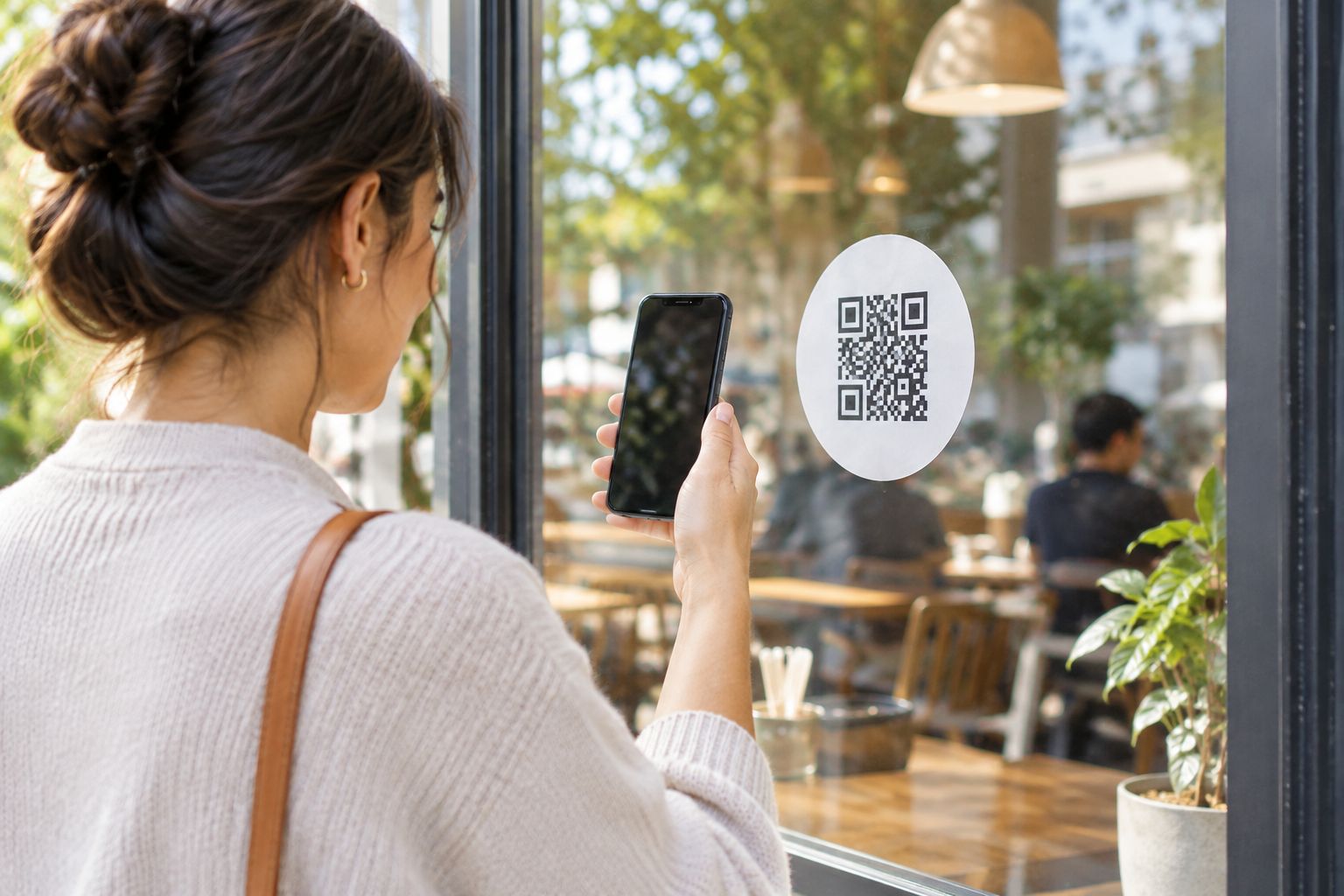
Follow the decal's supplied surface preparation and application instructions. Clean glass, correct orientation, and an undistorted pattern matter more than making the code blend into the window decoration.
Do not stretch the code to fit an awkward space. If the chosen location forces you to crop the border or place part of the pattern across a seam, change the location instead.
After installation, scan the actual decal from outside. Remove any temporary materials according to the application instructions, then verify both recognition and the menu destination.
Expected result: The installed decal opens the same menu as the approved proof, with no missing pieces, obstructed border, or orientation error.
The fourth configuration unit keeps the connection working after installation. This is the part that removes repeated artwork changes.
If the publishing system changes the address, update a redirect you control or restore the previous destination. A static code pointing directly to a removed file cannot fix itself.
Expected result: The decal stays unchanged while the public menu reflects your edits. A customer scan reaches the published version, not an old preview.
A second workflow applies when your website or menu provider changes: keep the encoded address and change where it sends visitors. This works only when you control a redirect already used by the printed code.
Use this sequence for the destination change:
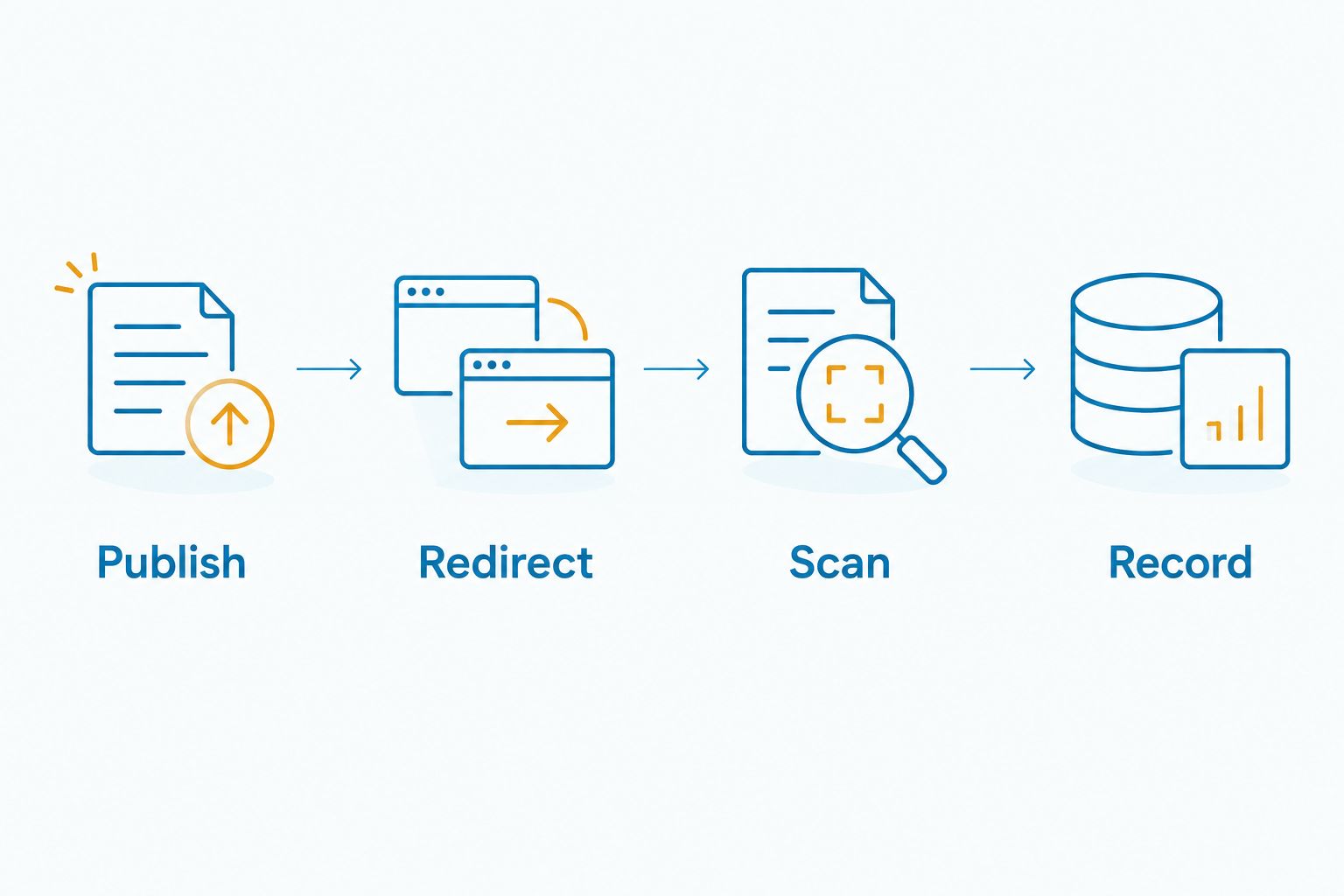
A redirect introduces its own responsibility. Preserve access to the account or website configuration that controls it, and avoid unnecessary chains through several destinations.
For a 2026 provider change, check the full path from decal to menu before retiring the previous menu. Do not treat a working new page as proof that the installed code reaches it.
Check the quiet zone, contrast, missing pieces, and distortion first. Move away from reflections and test a larger paper proof at the same location. If the proof works but the installed decal does not, inspect the installation and background rather than changing the menu address.
The destination is not fully public. Change the page or document's access settings, then test while signed out. Recreating the QR code will not solve permissions at the same address.
Open the destination directly and check whether the update was published. If the direct page is correct but the scan reaches another page, inspect the encoded address and any redirect. Also test in a fresh browser session to distinguish an outdated destination from cached content.
Check reflections, background contrast, and orientation through the glass. Test from the customer's actual position. Confirm whether the design was prepared for that installation side before ordering replacement artwork.
Compare the current document address with the address encoded in the decal. Restore the original address or update a redirect you control. If neither route is available, the printed code needs replacement because its stored address has not changed.
Give the menu connection an owner, not just an installation date. Keep the encoded address, final artwork, public destination, and access instructions together, with credentials stored securely rather than inside an artwork file.
For multiple locations, use a destination that clearly identifies the correct location. Do not place identical codes on different storefronts unless the shared destination lets customers select the right menu without confusion.
Nostalgifactory's personalized vinyl decals belong to the physical-signage part of this process. Your website or menu system handles the content; your QR destination connects the two. Keeping those responsibilities separate makes future changes easier to manage.
How do I connect a window decal QR code to my online menu?
Generate a QR code from your public menu address, export the artwork, and test it before producing the decal. Use an address you can keep when the menu changes, then scan the installed decal to verify the connection.
Can I update my menu without replacing the QR decal?
Yes, if you update the content at the same encoded address or change a redirect you control. A static QR code cannot change its stored address after printing.
Is a webpage better than a PDF for a QR menu?
A public webpage is the better fit when you can maintain readable mobile content at a stable address. A PDF is workable when it remains readable on a phone and your replacement process preserves its address.
Can customers scan a QR decal through a window?
A QR decal can be scanned through glass when its orientation, contrast, placement, and reflections allow recognition. Test a full-size proof from outside before approving production.
How much empty space does a QR code need?
A standard QR code needs a quiet zone at least 4 modules wide on every side. Keep text, borders, and neighboring artwork outside that empty area.
Why does my menu QR code ask customers to sign in?
The linked page or document requires authentication or permission. Make the destination public and verify it in a signed-out browser; changing the artwork alone will not fix access restrictions.
Does Nostalgifactory manage the online menu behind a decal?
Keep menu hosting and updates with your website or menu administrator. Nostalgifactory sells personalized vinyl decals and weatherproof stickers; confirm QR artwork requirements separately before ordering.
Print a readable fallback address beside the code, outside its quiet zone. A customer whose camera does not recognize the pattern can still type the menu address into a browser.
Choose that fallback deliberately. It should lead to the same maintained destination as the scan, not a second menu that someone must remember to update.